Remix anything. On the beat.
AudioVik is said “Audio-Veek”
AudioVik is a free music editor for Windows. Drop in songs and they lock to one tempo. Then cut, blend and master them into a mix, with AI tools for stems and vocals when you want them.
What it does
Everything is in a menu you can name
AudioVik keeps its tools in plain menus, so you can always find them again. Here's what's in each one.
Tempo beat matching
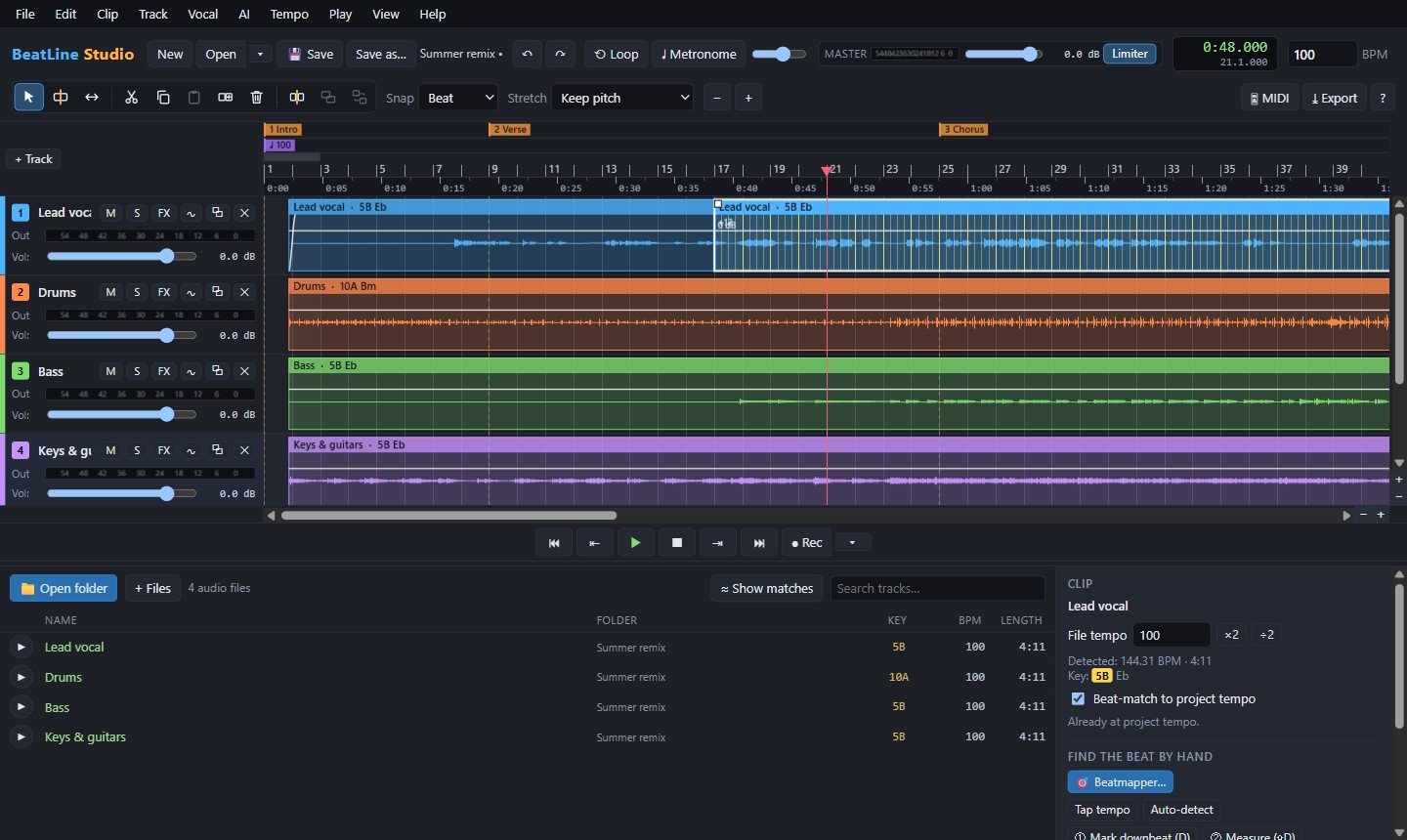
- Songs lock to one tempoEach song's tempo and key are detected when you add it, and it plays at the project's tempo without changing pitch.
- BeatmapperMap the beats by hand for live recordings and songs whose tempo drifts.
- Tempo changes and rampsJump to a new tempo or glide into it over a few bars.
- Songs that mix wellKeys are shown as Camelot codes, and Show matches lists the songs that fit the one you picked.
Edit & Clip arranging
- Split, move, copy, groupAn icon toolbar and keyboard shortcuts for every edit, with snap to bars and beats.
- Fades and crossfadesFive fade shapes; overlapping clips crossfade by themselves.
- Gain and pan linesDraw volume and pan changes right on a clip.
- Transitions and bounceBlend one song into the next over 4 to 32 bars, then bounce the result into a single clip.
Play recording
- Record from your microphoneWith a count-in, a live waveform as you sing, and a metronome that follows the tempo.
- Punch-in and loop takesRe-record just a few bars, or record take after take over a loop and keep the best parts of each.
- MIDI controllersMap knobs, faders and buttons to the mixer and transport.
Vocal voices
- Vocal presets and riderPop, R&B, rap, ballad or podcast sound, and a rider that keeps the level steady.
- Clean up add-onRemoves background noise and clicks, and softens breaths and pops.
- Auto-tune and note editor add-onPull a vocal into key, from natural to robotic, or drag single notes up and down.
- Harmonies and double-tracking add-onAdd harmony voices in the song's key, or a wide doubled vocal.
AI stems & voices
- Separate stems add-onSplit any song into vocals, drums, bass and the rest, to remix or make an instrumental.
- Change voice add-onRe-sing a vocal with a voice model you have the right to use.
Export File → Export
- WAV, AIFF or MP3The whole mix, the loop region, or one file per section between markers.
- Mastering on exportHit streaming loudness (−14 LUFS), Apple (−16), loud (−11) or club (−9), with a choice of clean, warm, bright or punchy sound.
- Track lists and CUE sheetsFor mixes and DJ sets.
Free, and it stays that way
No account. No ads. Nothing sent anywhere.
Free for everything
Use it for any music, including music you release or sell. The music you make is yours.
Private
The app doesn't collect anything and works offline. Only the add-on installers go online, to download what they need.
Add-ons only if you want them
The AI tools are optional downloads. Without them, AudioVik is a 12 MB download.
Made for fun
A hobby, not a business
AudioVik is something I make in my spare time, for the love of music. There's no company behind it, no support team and no sales: it's just me, and it's just for fun.
I've done my best to make it safe, and it doesn't collect anything or change anything it shouldn't. Even so, you install and use it at your own risk: I can't take responsibility for anything that happens to your computer or your files. Please keep backups of your music and projects.
If something isn't working, let me know and I'll do my best to help and fix it when I can. I just can't promise how quickly.
Download and install
Up and running in a minute
- Download the zip and open it
AudioVik-1.0.0-Windows.zip (12 MB) holds the installer, a read-me, the licence and a checksum.
- Run “AudioVik 1.0.0 Setup.exe”
Windows may say it protected your PC, because the app is new and not yet signed with a paid certificate. Click More info, then Run anyway. It installs just for you; no administrator password needed.
- Open a folder of music
Click Open folder, drag songs onto the timeline and press Space to play. Help → Shortcuts lists everything else.
- Add the AI tools, if you like
Help → Install stem separation, or Help → Install voice tools. Each downloads about 3 GB in its own window; nothing else has to be installed first.
AudioVik is a hobby project, offered as is. You install it at your own risk, so keep backups of your work. More about that.
- System
- Windows 10 or 11, 64-bit
- The app
- About 35 MB of disk space
- Each add-on
- About 6 GB of disk space. An NVIDIA graphics card makes them much faster, but isn't required.
Support AudioVik
Keep it free
AudioVik is made by DeeJay Alex, in spare time, and it's free for everyone. If it's useful to you, a donation helps pay for the time that goes into new features and fixes.
It's a thank-you, not a purchase: everyone gets the same app.
Amounts in Canadian dollars · opens paypal.me/DeeJayAlex in a new tab
Questions
Good to know
How do you say “AudioVik”?
Audio-Veek: “audio” as usual, then “Vik” rhymes with “week”. The stress is on the “Veek”.
Is it really free?
Yes. There's no trial, no paid version and no account. You can share the unchanged installer with friends, too. Donations are welcome but never required.
Is this a company? Can I get support?
No, AudioVik is a hobby: one person making it for fun in spare time, not a business. There's no support contract or guarantee, and it's provided as is: you use it at your own risk. If you run into a problem, though, get in touch and I'll do my best to sort it out.
Why does Windows warn me about the installer?
Windows warns about apps that aren't signed with a paid certificate and haven't been downloaded by many people yet. Click More info, then Run anyway. If you'd like to check the file is exactly the one published here, see the checksum question below.
Is there a Mac version?
It's coming soon. For now AudioVik is for Windows 10 and 11.
Can I release music I make with it?
Yes, the music you make is yours. If you use other people's songs, samples or voices, you still need their permission to release the result; separating stems or changing a voice doesn't change who owns the original.
Do I need a powerful computer?
Not for editing, mixing and exporting: any recent Windows PC will do. The AI add-ons run on any PC too, but an NVIDIA graphics card makes them many times faster: separating a song takes well under a minute on one, and a few minutes without.
Where are my files kept?
Projects go wherever you save them. Stems, recordings, bounces and voice models you add are kept in your Music folder. To find any of them, right-click a clip and choose File → Show in folder.
How do I uninstall it?
If you installed the AI add-ons, remove them first with Help → Remove AI add-ons (that frees several gigabytes). Then Settings → Apps → Installed apps → AudioVik → Uninstall. Your projects, stems and recordings are kept.
How do I check my download?
Open PowerShell in the folder with the installer and run Get-FileHash "AudioVik 1.0.0 Setup.exe". The result should be e3fac8260a640d5ff104f19eddf17ead94091aa7b193f5a77f369bad6dbfffa6.
Get in touch
Something not working?
Send me a message and I'll do my best to help. Remember it's a hobby, so a reply can take a little while.
For a problem, it helps to say:
- what you were doing when it happened
- any error message, word for word
- your Windows version, and whether you have an NVIDIA graphics card